 Accessible Shopfront
Keyboard access
By the end of this step: you will be able to use your whole site with only a keyboard, and spot the problems that block keyboard users.
The short version
- Some people can't use a mouse. They move around a page with the keyboard instead.
- Everything on your site must work with a keyboard.
- People must always see where they are on the page.
- The order must make sense, and nothing should trap them.
Who uses a keyboard
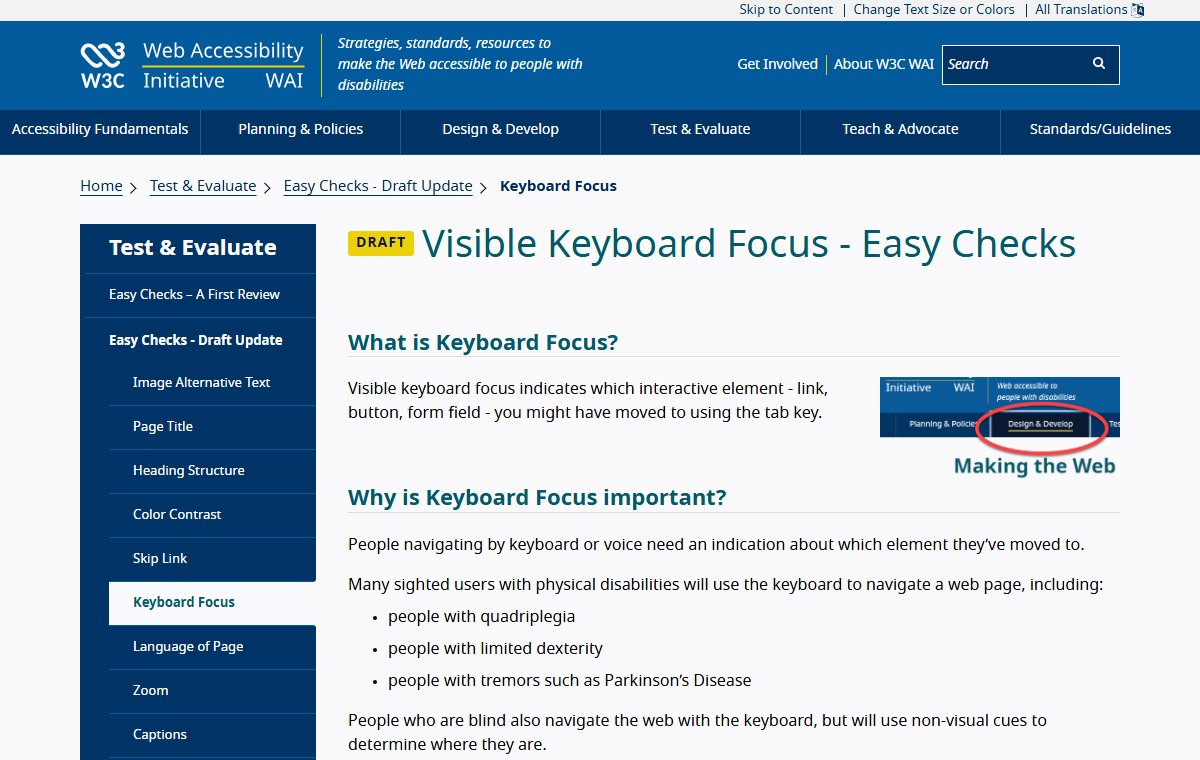
Many people with a physical disability use a keyboard instead of a mouse.[1] For example, someone with a tremor may find a mouse too hard to control.[1] People who are blind also use the keyboard to move around a page.[1]
People who use voice control also need to see where they are.[1] So do people who use special switches instead of a keyboard.[2]
The keys you need
You only need a few keys to test a site.[3]
| Key | What it does |
|---|---|
| Tab | Moves to the next link, button or field |
| Shift + Tab | Moves back to the one before |
| Enter | Follows a link or presses a button |
| Space | Presses a button or ticks a checkbox |
The item you have moved to is said to have focus. It should show an outline or highlight.[1]
Step 1: Can you reach and use everything?
WCAG 2.1.1 Keyboard is Level A. It says everything on the page must work from a keyboard.[4]
Press Tab again and again, from the top of the page. Every link, button, menu and form field should get focus in turn. Then try to use each one with Enter or Space.
Take extra care with drop-down menus and pop-ups. Make sure you can open them, use them and close them.
Step 2: Can you always see the focus?
WCAG 2.4.7 Focus Visible is Level AA. It says the keyboard focus must be visible.[4] Without it, people who see the screen but use a keyboard can't use the page.[5]
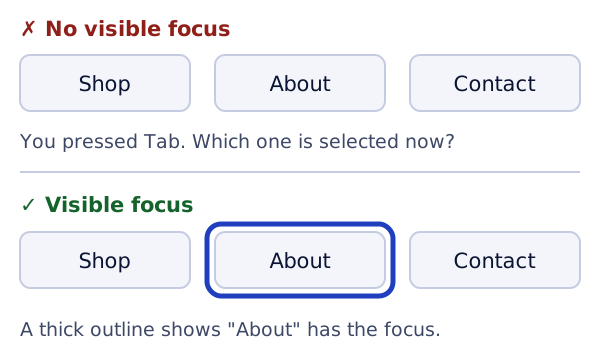
If your theme hides the focus outline, ask your web designer to bring it back. A strong outline in your brand colour is fine.
WCAG 2.2 added a related rule. 2.4.11 Focus Not Obscured (Minimum) is Level AA. The item with focus must not be completely hidden by something else on your page.[4] W3C gives an example: a cookie banner that sits on top and covers the focused item fails this rule.[6]
Step 3: Does the order make sense?
WCAG 2.4.3 Focus Order is Level A. Focus should move in an order that keeps the meaning.[4] Usually that means top to bottom and left to right, the way you read.
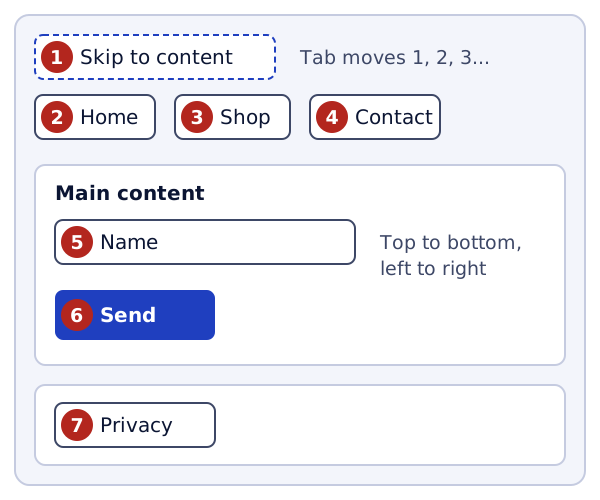
If focus jumps from the menu to the footer and back, people get lost. When that happens, the order in the page code may not match what you see.
Step 4: Is anything a trap?
WCAG 2.1.2 No Keyboard Trap is Level A. If you can move into something with the keyboard, you must be able to move out again.[4]
Watch out for embedded maps, video players, chat windows and booking widgets. Tab into each one, then try to Tab out.
Step 5: Add a skip link
On every page, keyboard users must Tab through your menu before they reach the content. A skip link lets them jump straight past it.[2]
It is usually the first thing on the page, with words like "Skip to main content".[2] It can stay hidden until it gets focus, as long as it then shows clearly.[2]
This meets WCAG 2.4.1 Bypass Blocks (Level A), which asks for a way to skip content repeated on every page.[4]
Try it on your site
- Put your mouse out of reach.
- Open your home page and press Tab. Does a "skip" link appear first?
- Keep pressing Tab. Can you always see where you are? Write down any place you lose track.
- Try one real task with the keyboard only, like sending a message through your contact form.
Sources
- Visible Keyboard Focus - Easy Checks, W3C Web Accessibility Initiative (accessed 2026-10-18)
- Skip Link - Easy Checks, W3C Web Accessibility Initiative (accessed 2026-10-18)
- Keyboard Accessibility, WebAIM (accessed 2026-10-18)
- Web Content Accessibility Guidelines (WCAG) 2.2, W3C (accessed 2026-10-18)
- Understanding Success Criterion 2.4.7: Focus Visible, W3C Web Accessibility Initiative (accessed 2026-10-18)
- Understanding Success Criterion 2.4.11: Focus Not Obscured (Minimum), W3C Web Accessibility Initiative (accessed 2026-10-18)